
I was discussing different failure scenarios that could occur in a 2-node vSAN 8 cluster with a colleague, and the conversation extended to include whether a 2-node vSAN cluster supports HA — the answer is yes!
Whilst I have read the theory, I hadn’t tested it myself, so this blog post covers the testing of what happens to a running VM when HA is enabled on a two-node cluster, along with the expected outcome for the vSAN data, based on the order of failures.
The expected behaviour is as follows:
- Host Fails First: The vSAN datastore remains available, and any running VM will be started on the remaining host. If the witness then fails, the vSAN datastore should remain available.
- Witness Fails First: The vSAN datastore remains available. However, if a host then fails, the vSAN datastore will become unavailable.
08/04/2025 – Post updated – added note below
NOTE – Host Fails First
To sustain a host failure followed by a witness failure, the component vote recalculation must be completed first. Typically, in a small cluster, this takes less than a minute. However, the vote recalculation can take up to five minutes, depending on the number of objects/VMs. If the witness disappears within 20-30 seconds after the initial host failure, it’s possible that the affected VMs/components may not be available.
Before diving into the testing, let’s have a quick recap of vSphere HA. vSphere HA (High Availability) is a feature in VMware vSphere that provides automated failover for virtual machines (VMs) in the event of host failure(s), ensuring minimal downtime and improved reliability. There are two key scenarios I want to highlight: Host Failure and Host Isolation.
- Host Failure Response: In this scenario, HA will automatically power on a VM that was running on a failed host. This is done using the protected list, which is stored in memory.
- Host Isolation Response: In a 2-node cluster, the Host Isolation response cannot be used as it cannot correctly detect a Host Isolation event. However, vSAN provides this capability and will kill the VMs in the event of a vSAN partition by using the AutoTerminateGhostVm feature.
If you want details on how to setup HA on a 2-node cluster, expand the section below.
How to setup HA on a 2-node cluster
The settings we need to correctly configure HA in a 2-node cluster are as follow
- Set the HA isolation response to Disabled (leave powered on)
- If it das.usedefaultisolationaddress is configured, set it to true (I will set it to true to show its an explicit dission)
- Have a gateway set on the management vmkernel. (Alternatively, you could set das.isolationaddress to 127.0.0.1 and set das.usedefaultisolationaddress to false, preventing ‘This host has no isolation addresses defined as required by vSphere HA’ the error from popping up)
So why are we setting the Isolation Response to disabled? On a vSAN cluster you normally set it to ‘Power off and restart VMs’ – I think the except from Yellow Bricks sums it up nicely.
Disable the Isolation Response >> set it to “disabled” (leave powered on)
That probably makes you wonder what will happen when a host is isolated from the rest of the cluster (other host and the witness). Well, when this happens then the VMs are still killed, but not as a result of the isolation response kicking in, but as a result of vSAN kicking in
Why do we not use an isolation response? (this reference supersedes some of the information in the above reference)
The isolation response is not required for 2-node as it is impossible to properly detect an isolation event and vSAN has a mechanism to do exactly what the Isolation Response does: kill the VMs when they are useless
This host has no isolation addresses defined as required by vSphere HA
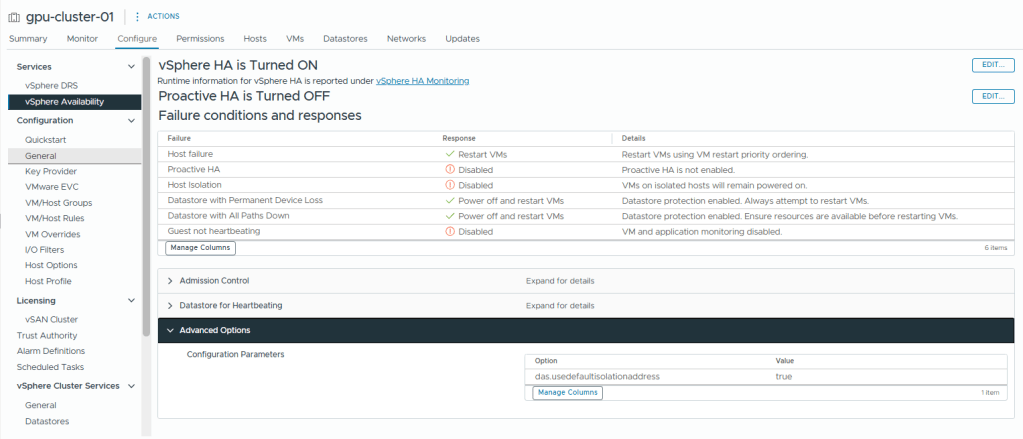
Below are the setups to set it up
- Select the cluster
- Browse to, Configure -> Services -> vSphere Availability
- Click Edit
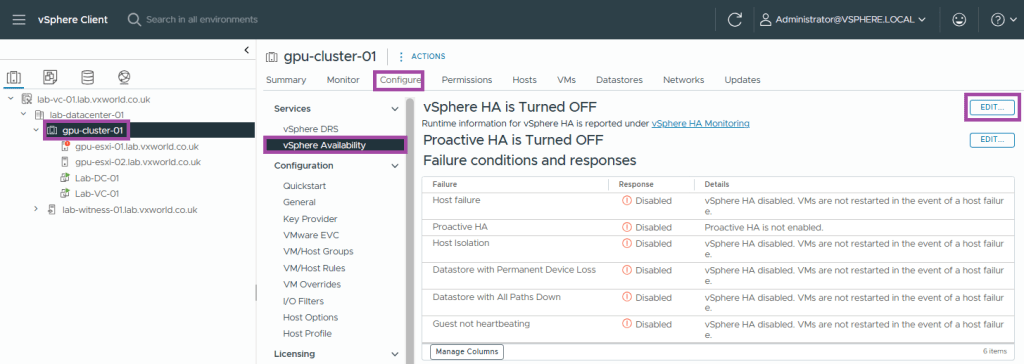
- Enable vSphere HA
- Set the Response to Host Isolation to Disabled
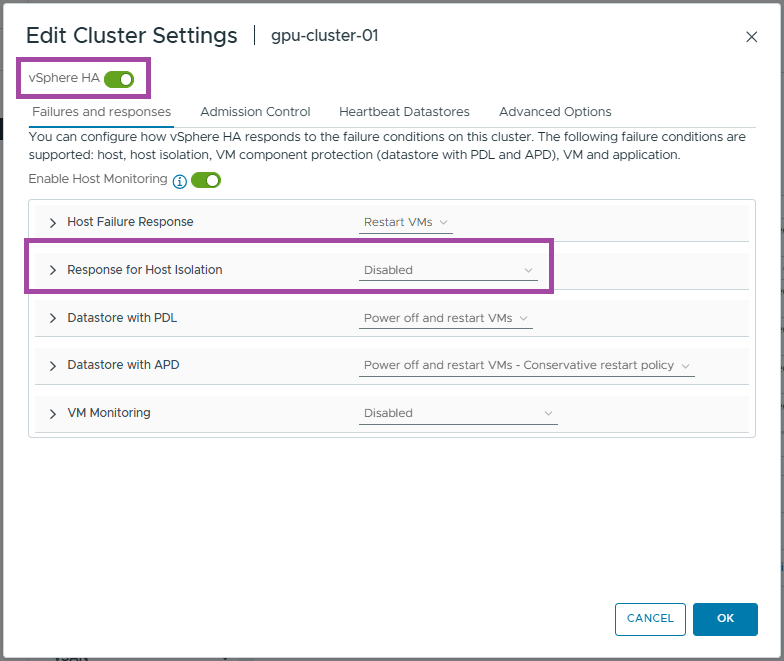
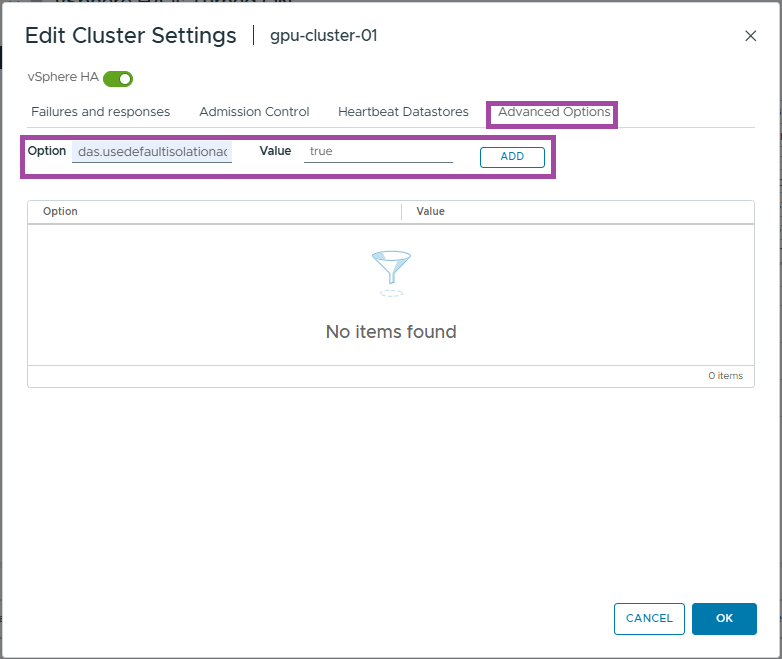
- Click Advanced Options
- Enter das.usedefaultisolationaddress as the option
- Enter true as the value
- Click Add
- Click OK
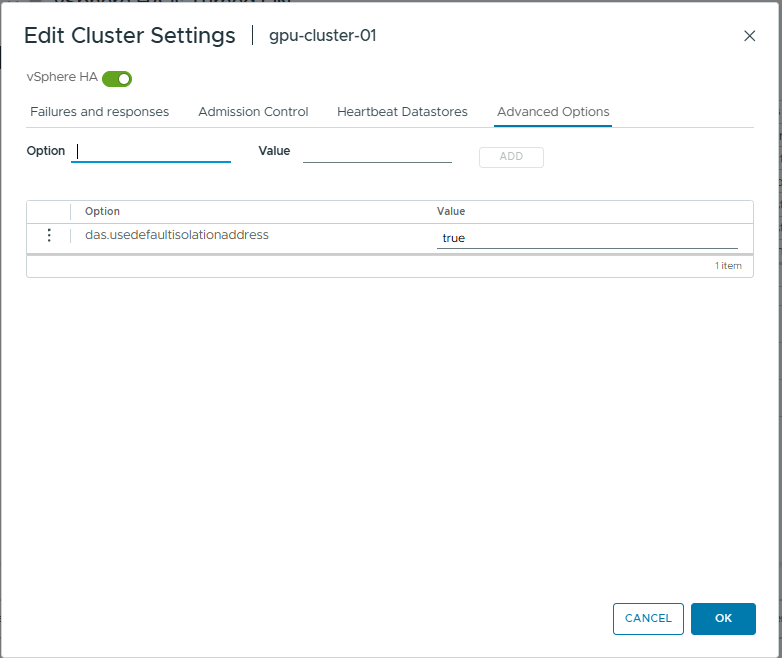
- You should now see the HA settings we just configured
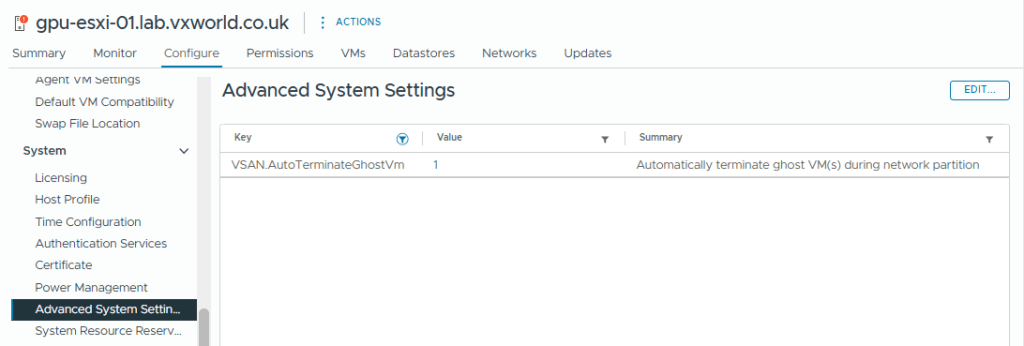
The vSAN setting that will terminate ‘ghosted’ VMs running on an partitioned vSAN node is VSAN.AutoTerminateGhostVm. This was enabled by default on my host but you can check it by selecting the Host -> Configure -> System -> Advanced System Settings and filtering for VSAN.AutoTerminateGhostVm and it should be set to 1. If you want to know more, check out How HA handles a VSAN Stretched Cluster Site Partition
—— End of HA Config ——
Now, lets get stuck into the testing
- Normal State
- Data Host failure followed by witness failure
- Witness failure follows by data host failure
- Conclusion
- TIP: How to use RVC
Normal State
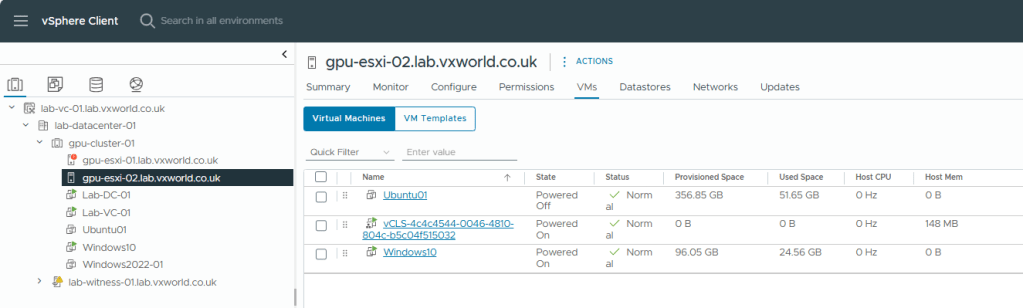
First we are going to look at the normal state. The VM we are going to use to test is called Windows-10 and it is currently running on host ESXi-02.
We will use RVC to check the how the components votes are distributed with both data nodes and the witness online.
The components votes for the Windows-10 vmdx are as follows:
- ESXi-01: 4 (Purple)
- ESXi-02: 5 (Green)
- Witness: 4 (Orange)
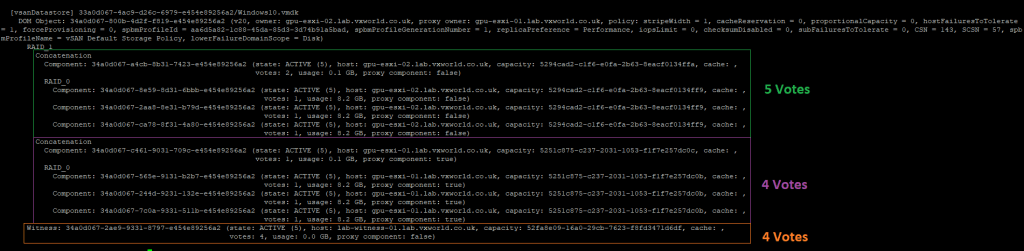
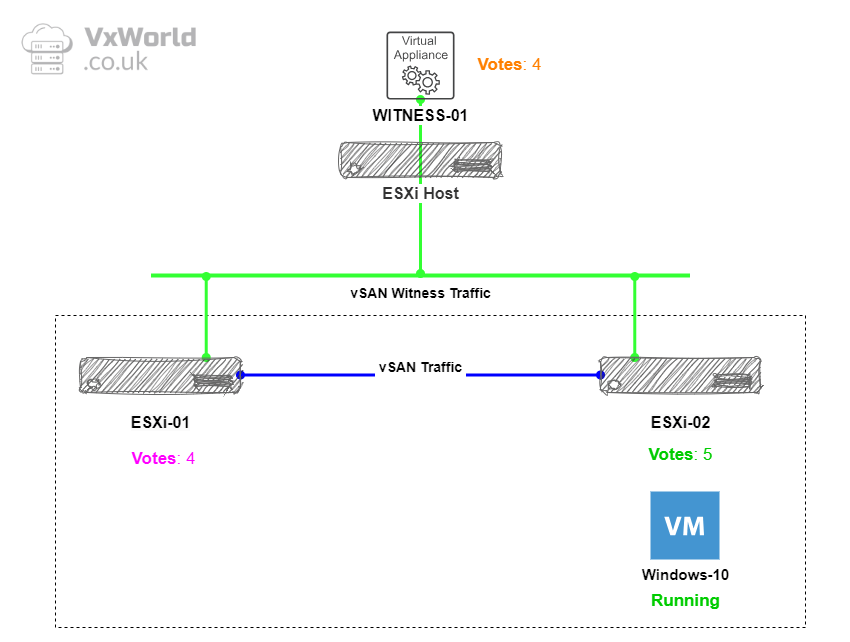
Based on the example above, if the witness fails, there are 9 votes out of 13 remaining, thus retaining quorum. If ESXi-01 fails, there are 9 votes out of 13 remaining, retaining quorum. If ESXi-02 fails, there are 8 votes out of 13 remaining, which still retains quorum.
In summary, if you have a witness or a single data host fail, vSAN data should remain available. If HA is enabled, the VMs should be started on the non-failed host.
Now, let’s consider multiple failure scenarios, as the order of failures is crucial in determining whether the data and, therefore, the VMs will remain available.
Data Host failure followed by witness failure
First, we will fail a data host, ESXi-02. The expectation is that the VM will be started on ESXi-01, and the votes will be recalculated to account for the failure of the data host. This will allow for the witness to fail second, while still maintaining data availability.
08/04/2025 – Post updated – added note below
NOTE – Host Fails First
To sustain a host failure followed by a witness failure, the component vote recalculation must be completed first. Typically, in a small cluster, this takes less than a minute. However, the vote recalculation can take up to five minutes, depending on the number of objects/VMs. If the witness disappears within 20-30 seconds after the initial host failure, it’s possible that the affected VMs/components may not be available.
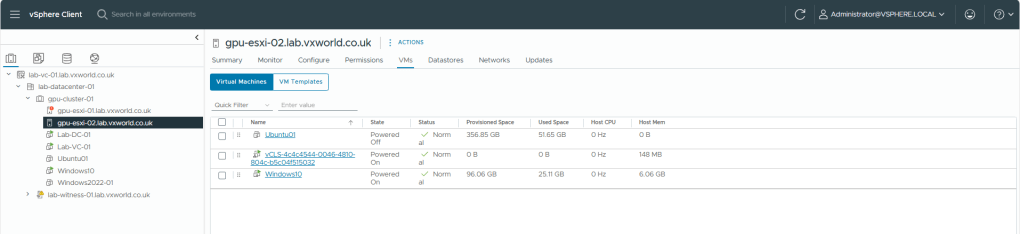
First I reconfirm the Windows-10 VM is still running on ESX-02
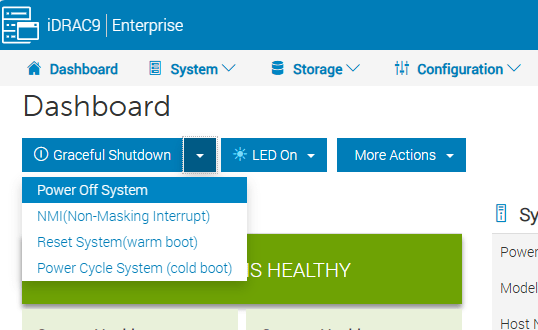
Next I hard power off the host to simulate a failure
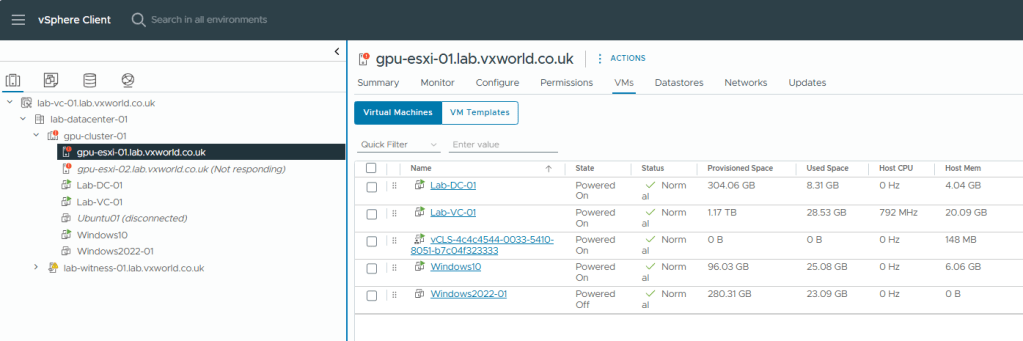
After a short period of time, vSphere HA determines that ESXi-02 no longer exists and powers on the Windows 10 VM on ESXi-01, as shown below – Proving HA works!
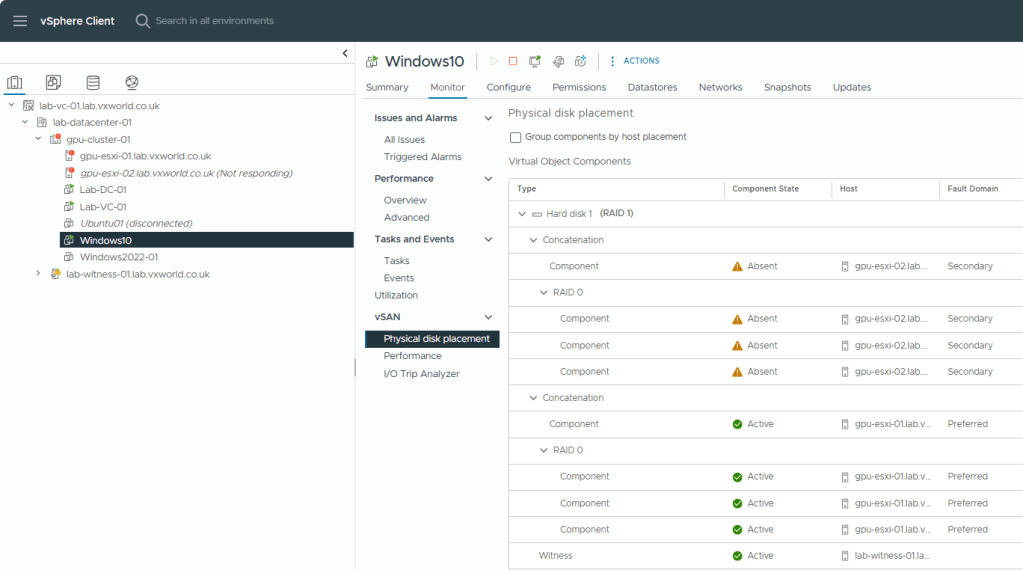
What about the vSAN side? We can see that the Windows-10 components on ESXi-02 are marked as Absent, but the witness and components on ESXi-01 are still Active.
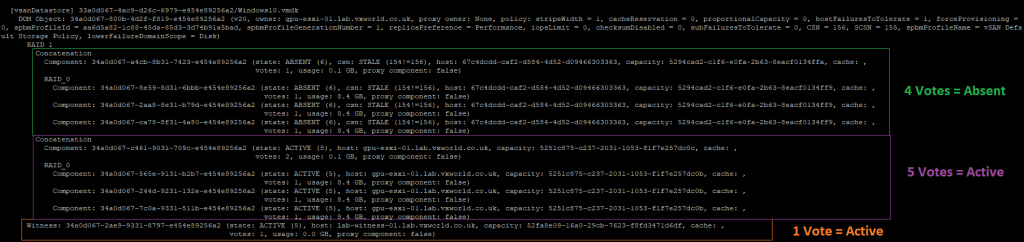
Now, let’s check the votes. As the data site failed first, we expect to see the votes recalculated to account for a potential secondary failure of the witness.
As you can see, ESXi-02, which originally had 5 votes, now has 4 and they are marked as Absent. The witness, which originally had 4 votes, now has 1 vote. Meanwhile, ESXi-01, which originally had 4 votes, now has 5 votes. This means, if the witness now fails, ESXi-01 will still maintain quorum.
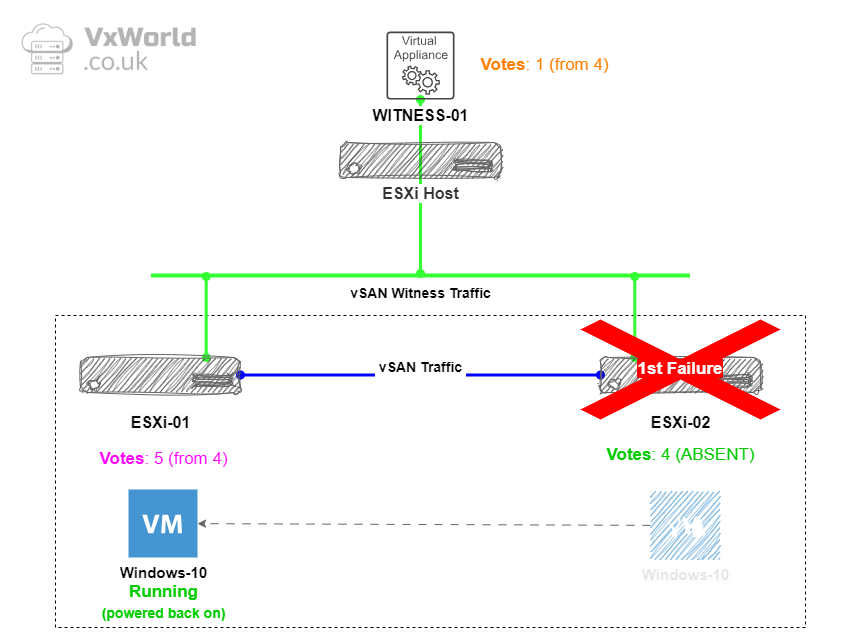
So what does this show? If a data node fails first, the votes are recalculated, allowing for the witness to fail second. (note, if the witness fails first, it does not recalculate, so you cannot sustain a data node failure – this is shown in the next failure scenario test)
Now lets fail the witness
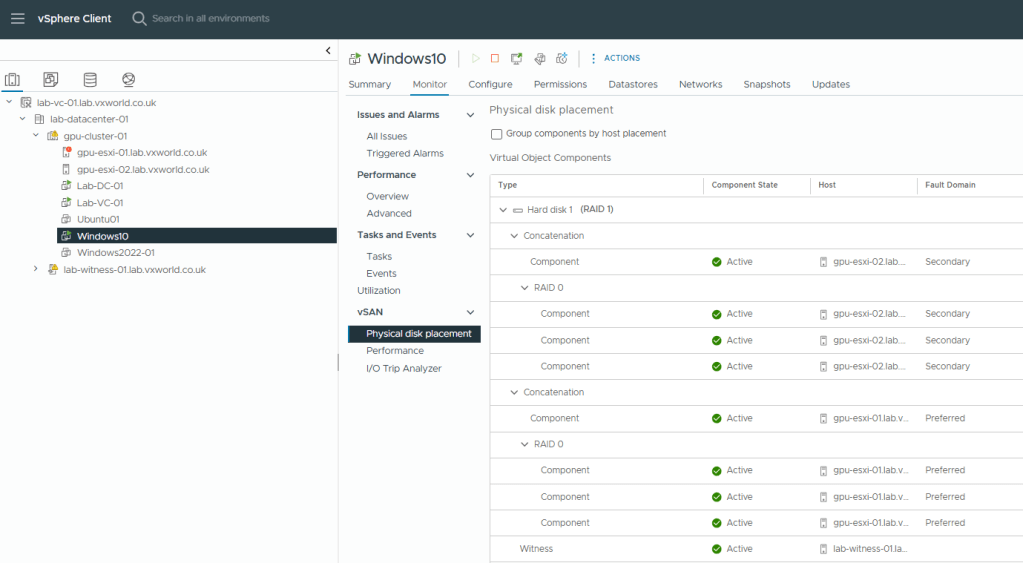
I have disconnected the network from the witness. As you can see below, we can still access the VM with ESXi-02 and the witness components marked as absent – so it still works!
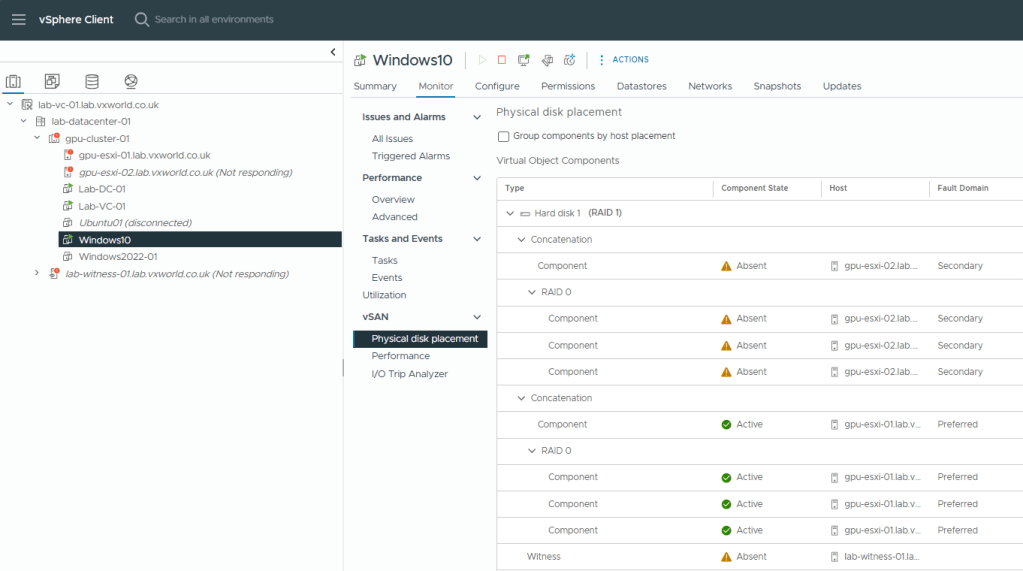
As you can see from the screenshot, ESXi-02 and the witness components as absent and the votes have remained the same
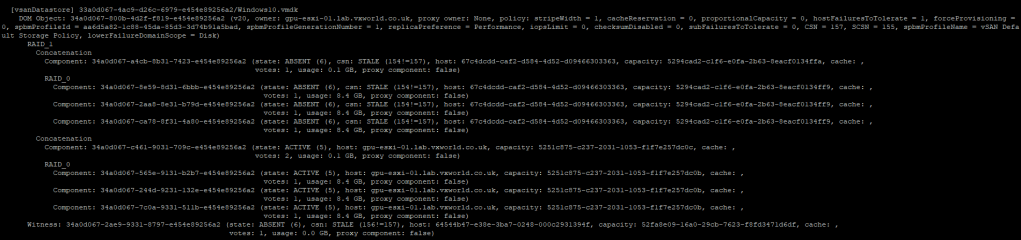

Finally, I will power on the witness and ESXi-02 to confirm everything comes back as expected.
That concludes testing the scenario where a data node fails first, followed by the witness. As a result, the vSAN data remains available, and the VMs are powered on to the remaining host.
Witness failure follows by data host failure
Now, let’s fail the witness first. The votes should remain the same, vSAN data should stay online, and the VM should continue running.
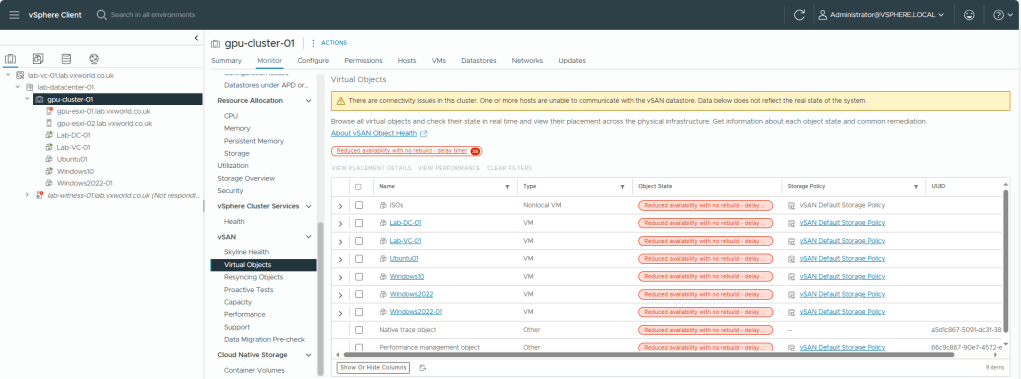
I have disconnected the network from the witness. As expected, we can see that the witness is marked as ‘Not Responding’. If we check the Virtual Object, they shows as available but with the status ‘Reduced availability with no rebuild – delay timer’, as it is waiting to rebuild the witness component once the delay timer expires.
From a VM perspective, we can see the witness component as Absent
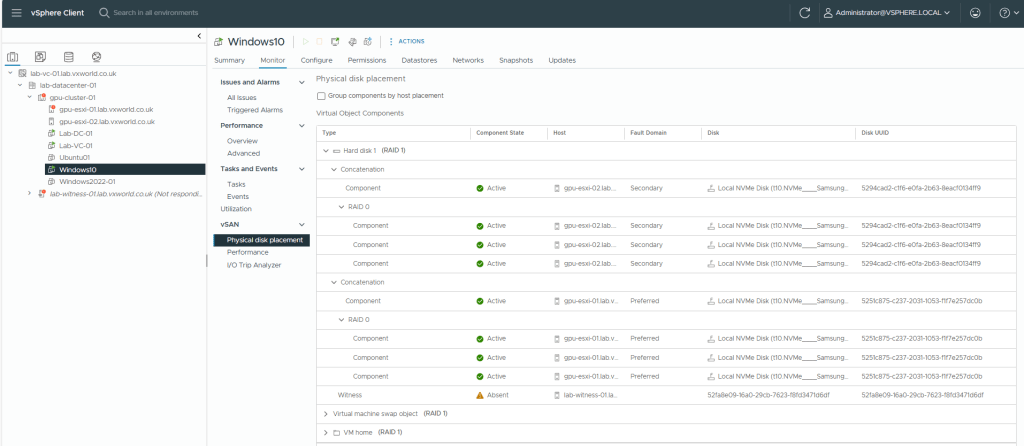
RVC Shows the Witness component as ABSENT but the votes are still the same
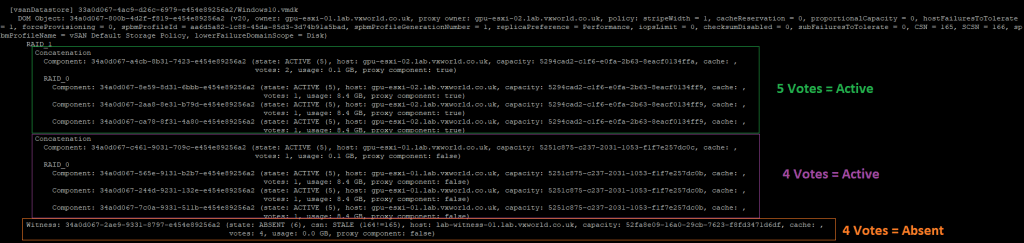
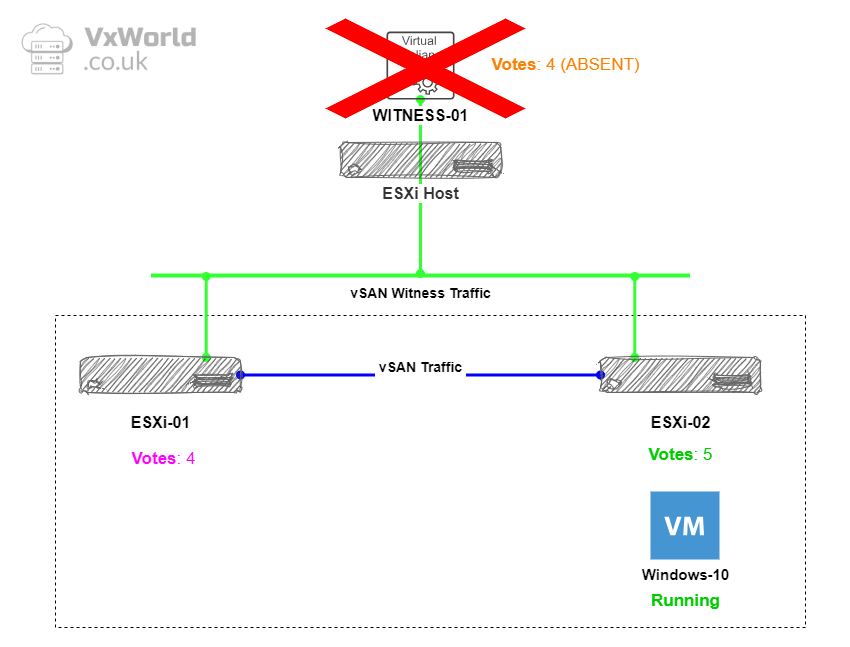
So, with the witness failing, everything continues to function as expected. However, if one of the two data hosts were to fail, the data would go offline, as there would no longer be enough votes to maintain quorum.
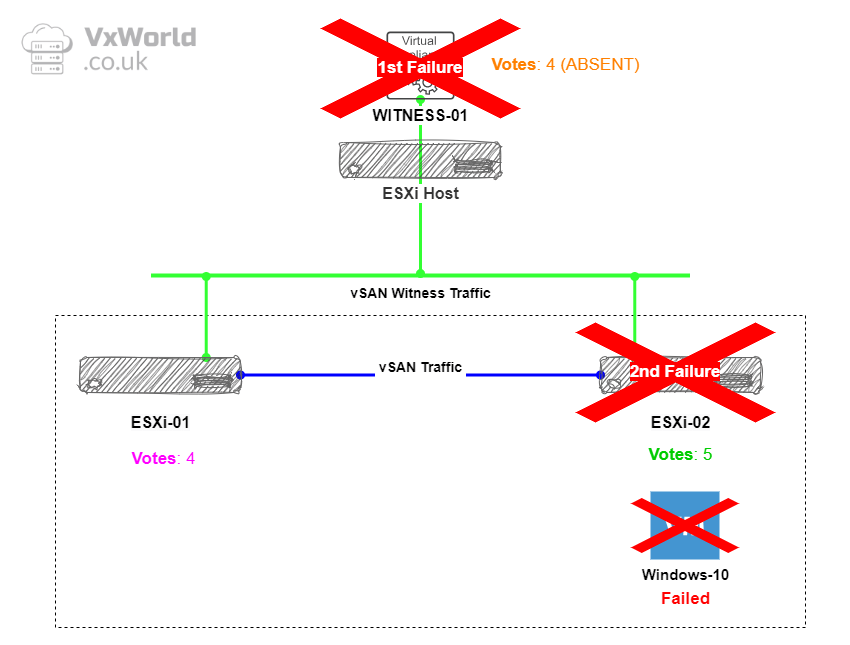
That concludes testing the scenario where the witness fails first, followed by a data node. As a result, vSAN data becomes unavailable, and the VMs are inaccessible.
Conclusion
In this post, we’ve explored the behaviour of a 2-node vSAN cluster with HA enabled, testing different failure scenarios and examining how vSAN and HA work together to maintain VM availability.
The key takeaway is that with HA enabled, a 2-node vSAN cluster can handle host and witness failures effectively, keeping the vSAN datastore available and ensuring that VMs are restarted on the remaining host if the host fails first! If the witness fails first, it cannot sustain a secondly failure.
By understanding the expected behaviour of vSAN and vSphere HA in these scenarios, you can confidently plan and implement high availability strategies for your vSAN clusters. Testing these failure scenarios is essential to ensuring your environment remains resilient and your workloads stay protected.
TIP: How to use RVC
If you want to use RVC yourself to view the votes, SSH onto the vCenter Appliance and run the following commands
rvc administrator@vsphere.local@localhost
cd localhost/
cd lab-datacenter-01/ (name of the datacenter)
cd vms/
ls (list VMs)
vsan.vm_object_info [4] (where 4 is a VM number)






















 VxWorld
Leave a comment