
In my earlier post, Understanding NVIDIA vGPU Time-Slicing Policies: Best Effort vs Equal Share vs Fixed Share, I explained how the three available time-slicing policies work in NVIDIA vGPU and NVIDIA AI Enterprise:
- Best Effort – prioritises overall GPU utilisation, but performance can vary if some workloads dominate.
- Equal Share – enforces fairness, giving each VM the same slice of GPU time.
- Fixed Share – guarantees each VM a reserved slice, ensuring predictable performance but at the cost of overall utilisation.
That post focused on how the policies work. But the natural next question is:
Which policy is best for my workload?
This is not always obvious from NVIDIA’s documentation, as recommendations are scattered across multiple guides. In this post, I’ve pulled them together into one place to make things clearer.
As always, remember that these are recommendations, not hard rules. The right choice depends on your specific workload, user experience goals, and cost/performance trade-offs. The most effective approach is to test and validate in your own environment, ensuring the chosen policy aligns with both your technical requirements and business priorities.
TL;DR – Recommended Scheduling Policies
| Workload | Recommended Policy | Why |
|---|---|---|
| VDI (Performance-focused) | Fixed Share | Predictable performance and user experience. |
| VDI (Maximise GPU Utilisation) | Best Effort | Higher density, better TCO per user. |
| AI / CUDA workloads | Fixed Share or Equal Share | Long-running, compute-heavy tasks benefit from guaranteed fairness or reservations. |
Virtual Desktop Infrastructure (VDI)
For VDI environments, the choice of policy depends on whether your priority is performance or utilisation.
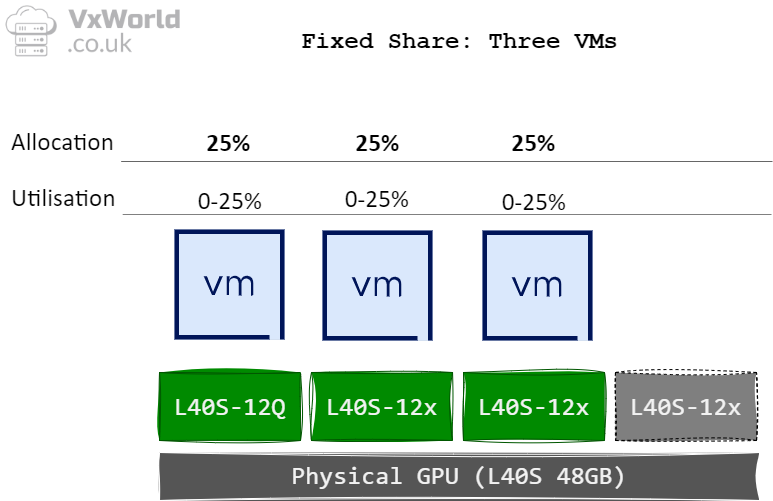
- Performance priority → Fixed Share
With Fixed Share, each vGPU receives a guaranteed portion of the physical GPU. This ensures consistent and predictable performance, making it the best choice for demanding users such as CAD designers, engineers, or graphics-intensive workloads. Because the allocation is tied to the first vGPU profile assigned to the physical GPU, performance remains stable even as other vGPUs are added or removed.
“If performance is the primary concern, it is recommended to use the fixed share scheduler and larger profile sizes, resulting in fewer users per server.” – NVIDIA RTX vWS Sizing and GPU Selection Guide
- Utilisation priority → Best Effort
With Best Effort, the GPU scheduler allocates resources dynamically, leading to higher overall GPU utilisation and more users per server. This reduces cost per user (TCO) but can result in variable performance when workloads spike.
“Most deployments… use the best effort GPU scheduler policy for better GPU utilization, supporting more users per server and improving TCO per user.” – Example VDI Deployment Configurations
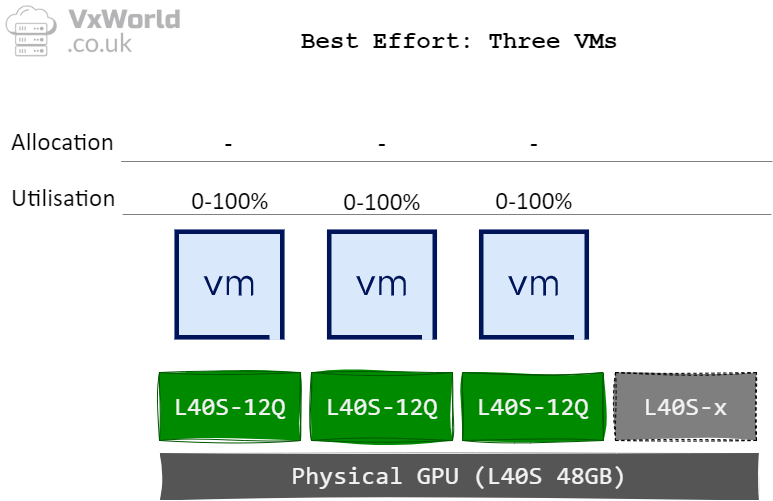
⚠ Note: If you use Equal Share or Fixed Share, the Frame Rate Limiter (FRL) is disabled.
AI and CUDA Workloads
For AI/ML and CUDA-based workloads, the situation is different. These are typically long-running, compute-intensive jobs that will use as much GPU resource as possible for as long as possible.
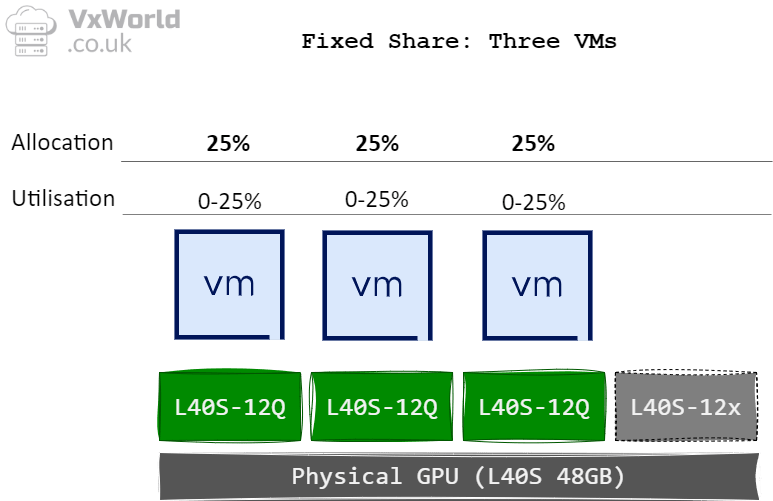
In this context, Fixed Share or Equal Share are strongly recommended. Both provide predictable and consistent access to GPU resources, avoiding contention and delivering steady throughput.
- Avoiding the “Noisy Neighbour” problem
Best Effort is not recommended—one aggressive job could easily starve others, leading to unpredictable behaviour. - Equal Share → Fairness with consistency
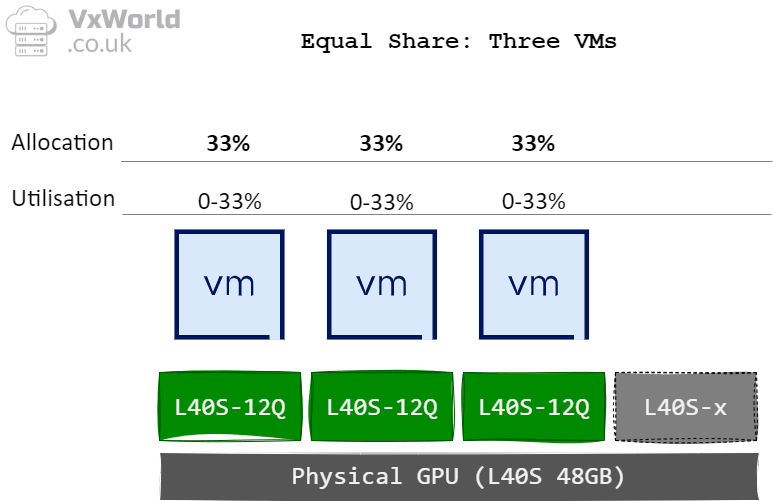
With Equal Share, the scheduler divides GPU time evenly across all active vGPUs. This prevents any single workload from dominating resources and ensures steady, predictable performance for every VM. However, as more vGPUs are assigned to the same physical GPU, the share per VM decreases, which can reduce overall throughput for each workload. - Fixed Share → Guaranteed allocation
With Fixed Share, the scheduler provides deterministic performance by reserving GPU slices based on the first vGPU profile assigned to the physical GPU. This means performance remains stable even as additional vGPUs are added or removed. For mission-critical workloads or managed service environments, this predictability can be essential.
“Since AI Enterprise workloads are typically long-running operations, it is recommended to implement the Fixed Share or Equal Share scheduler for optimal performance.” – NVIDIA AI Enterprise VMware Deployment Guide
Time-Slice Duration – Latency vs Throughput
The time-slice duration defines how long a virtual machine (VM) is allowed to execute on the GPU before the scheduler pre-empts it to give other VMs a chance to run. This setting is relevant when using Fixed or Equal Share scheduling policies.
- Shorter time slices → lower latency, better responsiveness.
- Ideal for interactive workloads such as graphics, VDI, or 60 FPS applications.
- VMs get GPU access more frequently, reducing wait times.
- Longer time slices → higher throughput, better for batch or compute workloads.
- Ideal for compute-heavy tasks like CUDA training jobs.
- VMs run longer, reducing context-switch overhead and improving overall GPU utilisation.
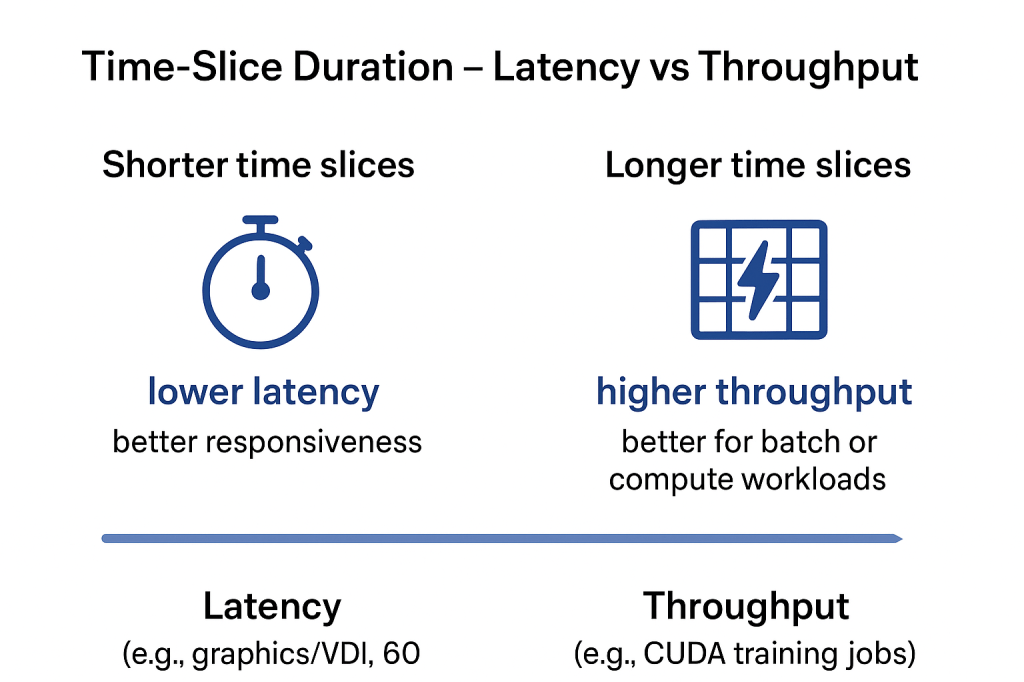
Key point: Choosing the right time-slice duration is a trade-off between responsiveness and efficiency.
You can configure the time-slice between 1 ms and 30 ms (minimum/maximum supported).
“For workloads that require low latency, a shorter time slice is optimal… For workloads that require maximum throughput, a longer time slice is optimal.” – NVIDIA vGPU Scheduler Time Slice
⚠ Deprecation note: In vGPU 19, the ability to disable strict round-robin scheduling and manually configure time-slice durations is deprecated and scheduled for removal in the next major release. NVIDIA AI Enterprise currently still allows it.
Key Takeaways
- VDI: Use Fixed Share for consistent performance, Best Effort for higher density and utilisation.
- AI / CUDA: Use Fixed Share or Equal Share – avoid Best Effort.
- Time-slice duration: Adjust based on latency sensitivity (shorter) or throughput needs (longer).
Choosing the right scheduler policy is about balancing performance vs efficiency. Start with NVIDIA’s guidance, but always test with your workload to ensure the expected results.



















 VxWorld
Leave a comment