
When setting up a Single Node vSAN Cluster—whether for testing purposes or before adding additional nodes—putting the sole host into maintenance mode can be challenging. Typically, when entering maintenance mode, you either ensure accessibility or perform a full data migration to keep vSAN data available. However, with only one host, there are no additional copies of the vSAN data and no destination for migration.
To address this, you must shut down vSAN before placing the host into maintenance mode.
Below is the process I have used in my Homelab, adapted from Manually Shut Down and Restart the vSAN Cluster: I have included steps that are not applicable to my environment (e.g., vSAN File Services) but marked them as skipped.
Disclaimer: This process has only been tested in a Homelab and is not intended for production environments. Use at your own risk. The author assumes no liability for data loss or damages.
Now that the disclaimer is out of the way, let’s go over the process!
I have been working on a PowerCLI script that does this. I will be sharing it soon. If this will be of use to you, drop a message in the comments
Entering Maintenance Mode
- Browse to the vSphere Client
- Homelab Skipped: Check the vSAN Skyline Health to confirm that the cluster is healthy. As this is a single node cluster, vSAN Skyline Health will be unhealthy! Therefore a risk needs to be accepted to skip this step
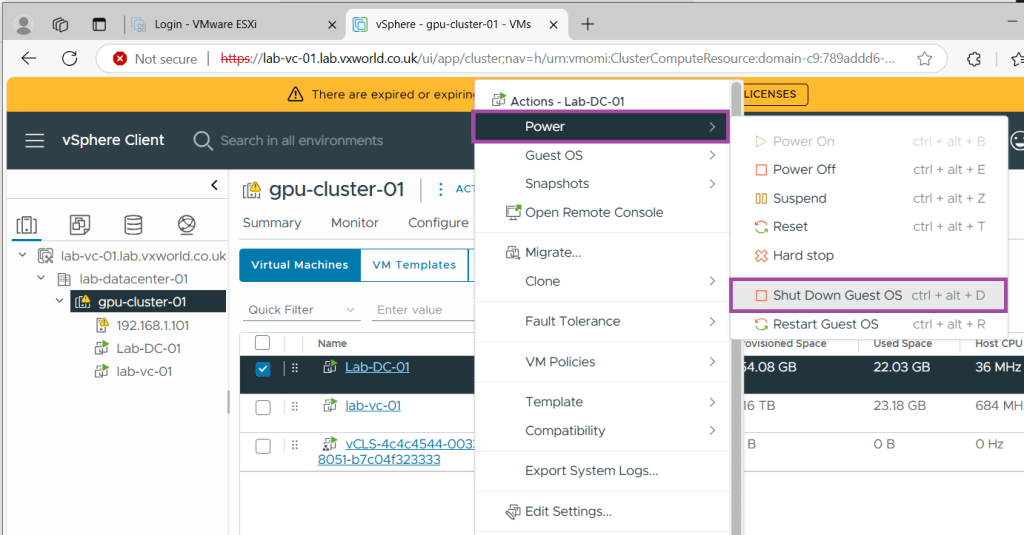
- Shutdown all workloads expect vCenter and Infrastructure Services (e.g. do not shutdown Domain Controller/DNS VMs).
- Right Click the VM -> Power -> Shut Down Guest OS
- Homelab Skipped: If vSAN file service is enabled in the vSAN cluster, you must deactivate the file service. Deactivating the vSAN file service removes the empty file service domain. If you want to retain the empty file service domain after restarting the vSAN cluster, you must create an NFS or SMB file share before deactivating the vSAN file service. I have not deployed vSAN File Services into my lab so this can be safely skipped
- Shutdown Infrastructure Services expect vCenter. In my example, I am shutting down the Domain Controller, noting I will lose services it provides such as DNS
- Homelab Skipped: Turn off HA. As this is a single node cluster, we do not have HA enabled.
- Put vCLS into retreat mode
- Configure (tab) -> vSphere Cluster Services -> General -> vCLS
- Click Edit VCLS MODE
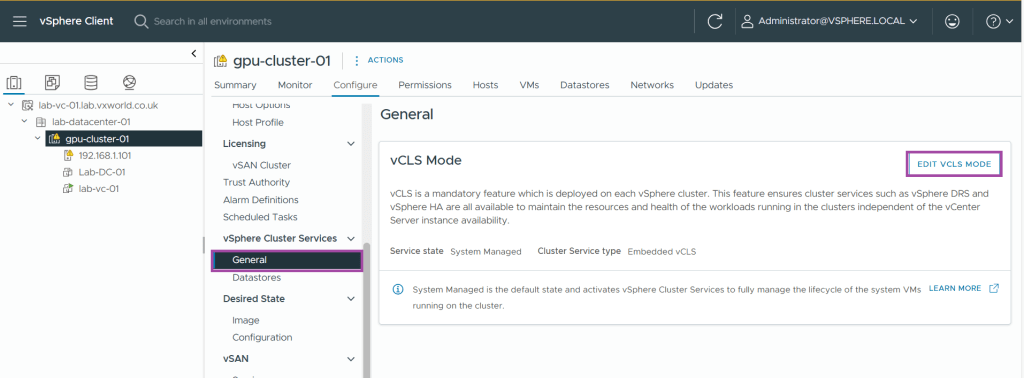
- Select Retreat Mode
- Click OK

- Homelab Skipped: Verify that all resynchronization tasks are complete. Not applicable to a single node cluster with a single disk
- Click the Monitor tab and select vSAN > Resyncing Objects.
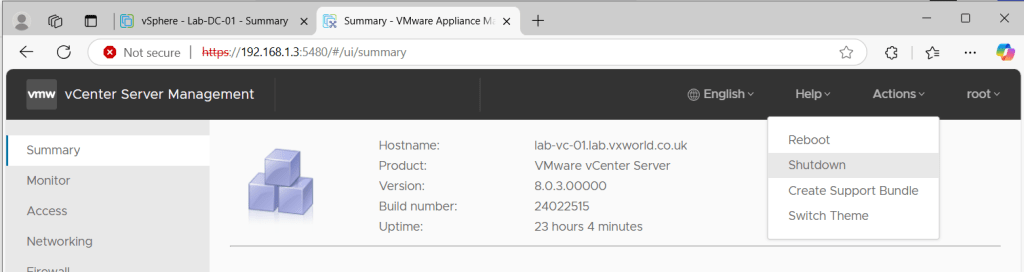
- Shutdown vCenter via the VAMI interface. In my example, that is https://192.168.1.3:5480 (I needed to use the IP address and the domain controller that is also my DNS server has been shutdown)
- SSH onto the ESXi host
- Deactivate cluster member updates from vCenter Server on each host (we only have on host)
esxcfg-advcfg -s 1 /VSAN/IgnoreClusterMemberListUpdates- Run the following command on a single host to prepare vSAN
python /usr/lib/vmware/vsan/bin/reboot_helper.py prepare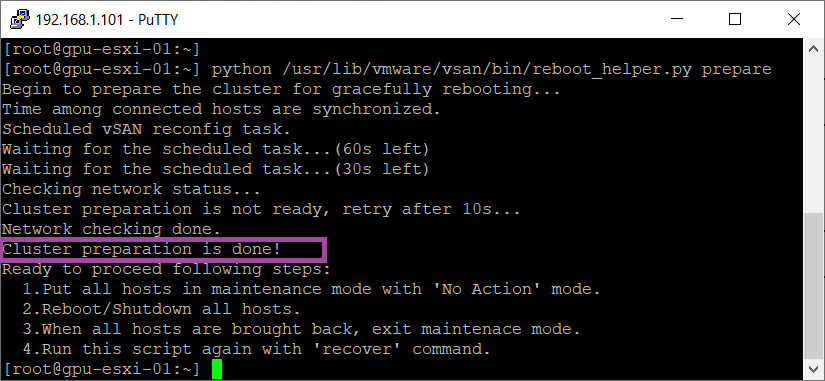
- Is is now time to put the host into maintenance mode. As this is the one and only host in the cluster, we need to set the vsanmode to noAction (we know the vSAN data will be unavailable and we have no other option)
esxcli system maintenanceMode set --enable true --vsanmode noAction- vSAN is now shutdown and the host is in maintenance mode. You can now perform the actions that require maintence mode.
- If you need to reboot, you can use the following command
reboot- If you need to shutdown the host, you can use the following command
esxcli system shutdown poweroff --reason "Manual vSAN shutdown"- After all hosts have successfully entered maintenance mode, perform any necessary maintenance tasks and power off the hosts.
Exiting Maintenance Mode
When you are ready to bring the single node ESA cluster back online. Follow the following steps.
- Power on the ESX host
- SSH on to it
- Take the host out of maintenance mode
esxcli system maintenanceMode set --enable false- Homelab Skipped: The official documentation says to run the following script. However from my testing, on a single node vSAN ESA cluster, this always fails. I am assuming this is expected.
python /usr/lib/vmware/vsan/bin/reboot_helper.py recover- Verify that all the hosts are available in the cluster by running the following command on each host.
esxcli vsan cluster get- Enable cluster member updates from vCenter Server by running the following command on the ESXi hosts in the cluster. Ensure that you run the following command on all the hosts.
esxcfg-advcfg -s 0 /VSAN/IgnoreClusterMemberListUpdates- Log onto the ESXi Host Client that contains the vCenter (i.e. not the vCenter IP/DNS)
- Power on the vCenter server and other VMs you shutdown. In my example, that is vCenter server and the Domain Controller
NOTE
It can take quire a while for all the vCenter services to start up after power on
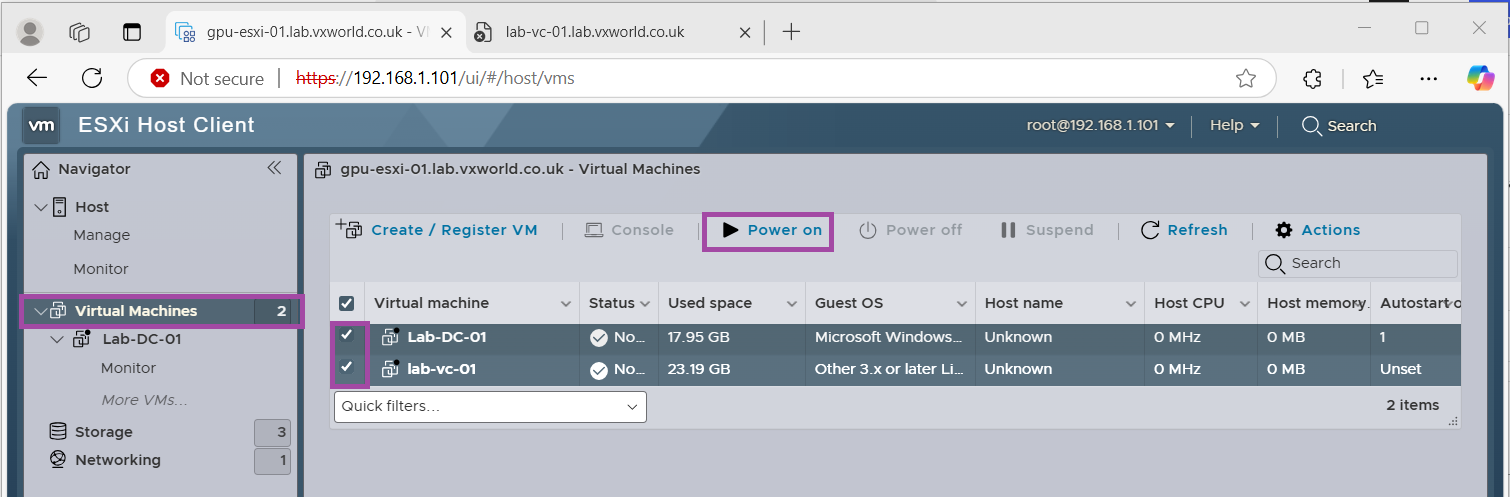
TIP
You can use the ESXi CLI to power on the VMs. Use the following command to get the ID number of the VM (first column)
vim-cmd vmsvc/getallvms | grep <vm name>
Use the following command to power on the VM with the ID identified above
vim-cmd vmsvc/power.on <VM ID>
- Next we will, deactivate vCLS retreat mode
- Configure (tab) -> vSphere Cluster Services -> General -> vCLS
- Click Edit VCLS MODE
- Select System Managed Mode
- Click OK

- Homelab Skipped: Check the vSAN Skyline Health and resolve any outstanding issues. With only a single node, there are lots of warning and a low health score.
- Homelab Skipped: Enable vSAN file service. Not applicable in my lab as vSAN file serivces has not been deployed
- Homelab Skipped: If the vSAN cluster has vSphere Availability enabled, you must manually restart vSphere Availability to avoid the following error: Cannot find vSphere HA master agent. Not applicable in my lab as its a single node and HA is not enabled.
To manually restart vSphere Availability, select the vSAN cluster and navigate to:- Configure > Services > vSphere Availability > EDIT > Disable vSphere HA
- Configure > Services > vSphere Availability > EDIT > Enable vSphere HA
Summary
Managing a Single Node vSAN Cluster requires a different approach when placing the host into maintenance mode. Since there are no additional nodes to maintain data availability, properly shutting down vSAN before entering maintenance mode is crucial. By following the outlined steps, you can navigate this process in a Homelab environment.
Remember, this method is not intended for production use, and you should always proceed with caution when working with vSAN configurations. If you plan to expand your cluster, adding additional nodes will provide redundancy and eliminate these maintenance challenges.
I have been working on a PowerCLI script that does this. I will be sharing it soon. If this will be of use to you, drop a message in the comments






















 VxWorld
Leave a comment