
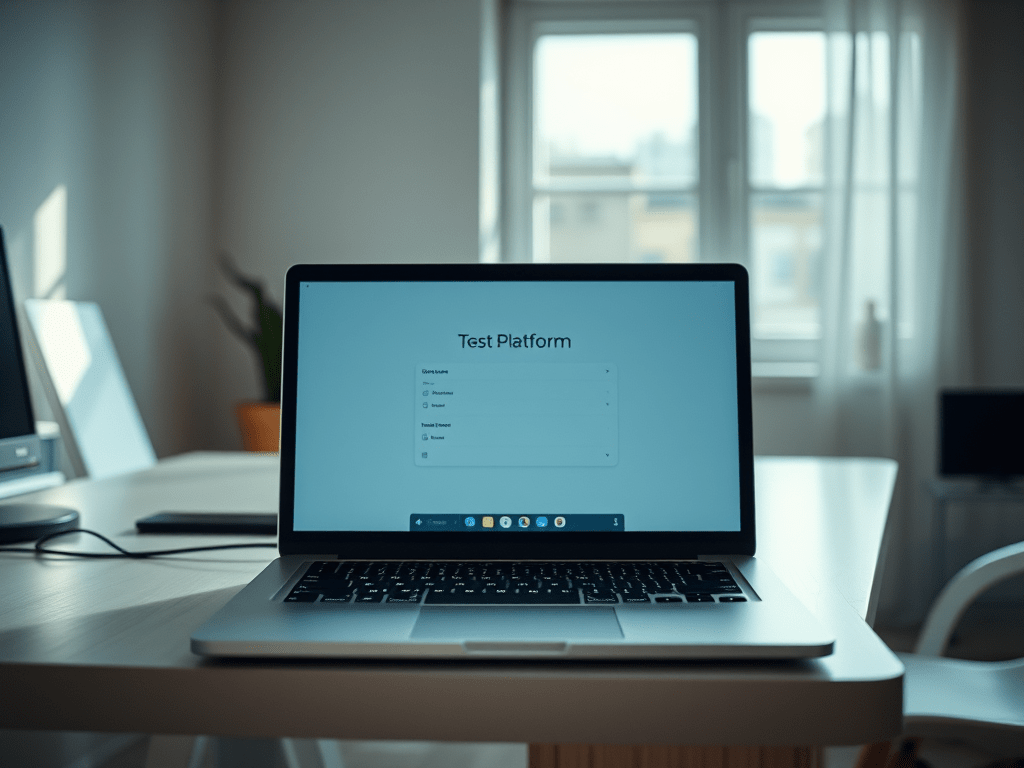
In this post I am going to give some tips for taking remote proctored exams. A remote proctored exam lets you take tests outside of a test centre, for example within your home.
At your appointment check in, you connect to the exam platform, in this case Pearson VUE. You take a photo of yourself. You also take photos of your ID and your test space. You then join a virtual queue. The proctor (exam invigilator) reviews the photos and information you have supplied. They check the audio and video feed, etc.
I have taken many Pearson VUE remote proctored exams. I have come to prefer them over going to a test centre. I find them more convenient. You do not need to book out an entire day to take an exam. It lets you fit them around a busy day!
Tips before check in
- Remove as much from the room that is practical
- Make sure your desk is clear
- Make sure you name on your VUE account matches your legal name as per your ID and not a nick name (abbreviated name)
- For the exams I have done, you are only allowed one screen. If you are using a laptop with an external screen, close the laptop lid. Make sure the laptop is out of reach. Personally have I have not experienced any issues using a screen connected to a laptop. From my experience the proctor wants you to tour the room and desk with the web cam. Confirming the laptop is connected to the screen and laptop is out of reach.
- Use a wired connection to your laptop and router/switch! Whilst my wireless is normally reliable, I had it drop out multiple times during check-in and an exam. This was unnecessary stressful and not conducive to the exam.
- Do the Pearson VUE application test on your laptop well before the exam.
- Do not use corporate laptops. When trying to do so I had many issues caused by the proxy server preventing the video feed working. To keep things stress free, I now use my personal device.
- Before the exam reboot your computer
- Pause windows updates! You do not want a forced reboot during your exam!
- Review the testing policies, FAQ’s at VMware OnVUE exam information // Pearson VUE
Hope this helps and I wish you the best with your remote proctored exam.
Please share you own tips in comment section.












 VxWorld
Leave a comment